Adding Tools
Tools define what AI is allowed to do with your application. Each tool represents a single, well-defined capability tied to a specific collection and action.
View all settings
| Setting | Description |
|---|---|
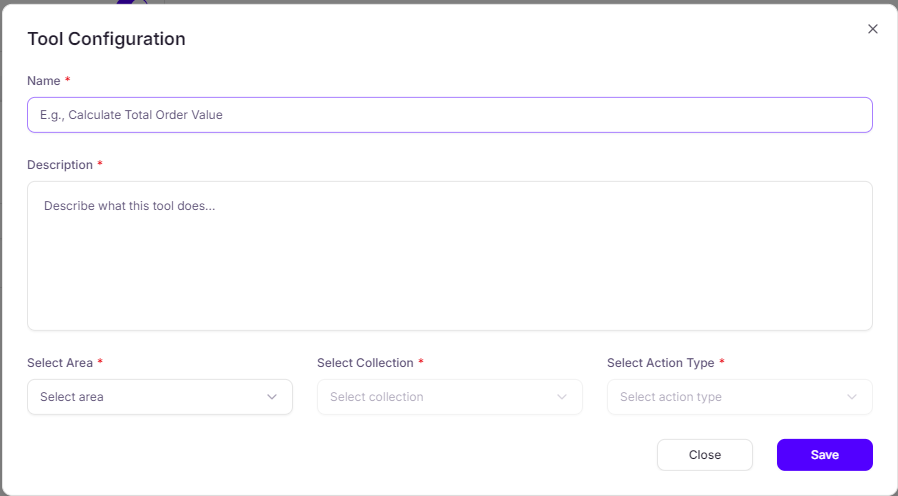
| Name | Text input, required. Action-oriented tool name (e.g., Calculate Total Order Value). |
| Description | Multi-line text, required. Explains what the tool does and when to use it. |
| Select Area | Dropdown, required. Application area containing the target collection. |
| Select Collection | Dropdown, required. Data collection to operate on. Only shows collections configured for the selected Area. |
| Select Action Type | Dropdown, required. Operation type (determined by ACL permissions). |
Adding a Tool
Click 'Add Tool'
In the Tools panel, click the + Add Tool button to open the Tool Configuration dialog.

Enter Name and Description
Choose a clear, action-oriented name and describe what the tool does.
Good names:
Calculate Total Order Value
List Customer Orders
Get Revenue Summary
Create Expense Report
Good descriptions:
Retrieves a list of financial transactions for a specified
date range. Returns transaction details including date,
amount, category, and description. Use this when the user
asks about specific transactions or spending patterns.
Select Area
Choose the application area that contains the collection you want to expose.

An area can have multiple collections configured for it. Only collections explicitly assigned to this area will appear in the next dropdown.
Select Collection
Choose the data collection this tool will operate on.
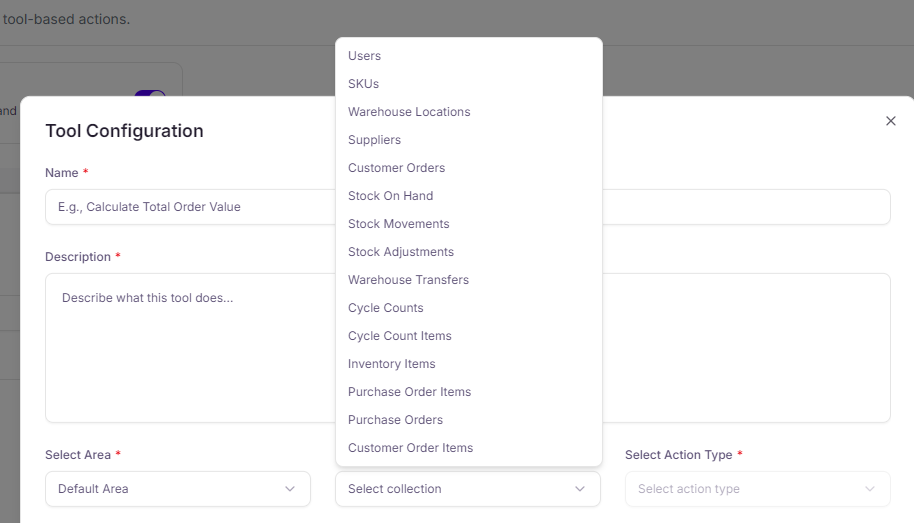
Available collections depend on what has been configured for the selected Area. Examples include:
- Users, SKUs, Warehouse Locations, Suppliers
- Customer Orders, Stock On Hand, Stock Movements
- Stock Adjustments, Warehouse Transfers, Cycle Counts
- Inventory Items, Purchase Orders, Customer Order Items
Select Action Type
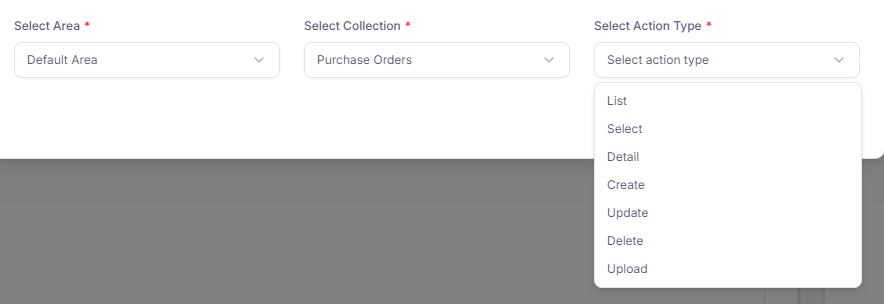
Choose the operation this tool will perform on the collection.
Action Types
| Action Type | Operation | Example Use |
|---|---|---|
| List | Retrieve multiple records | Get all transactions |
| Select | Query with filters/conditions | Search orders by status |
| Detail | Get single record by ID | View order details |
| Create | Insert new record | Create expense report |
| Update | Modify existing record | Update budget allocation |
| Delete | Remove record | Archive old records |
| Upload | Handle file uploads | Upload receipt image |
Action types are dynamically filtered based on your ACL configuration. If no role in the selected Area has permission for a specific action on any collection, that action type will not appear in the dropdown.
Tool Design Principles
Each tool should do one thing well. If you find yourself describing multiple capabilities, split them into separate tools.
If a capability is not added as a tool, AI cannot access it. This is your primary security mechanism.
Tool parameters are automatically generated based on the collection schema and action type you select. No manual parameter configuration is needed.
Next Steps
- Generating Code - Export your MCP-ready application
- Connecting to Claude - Set up Claude Desktop